


 42
42
Before opening Max Agent, or Max Communicator, plug in the USB headset.
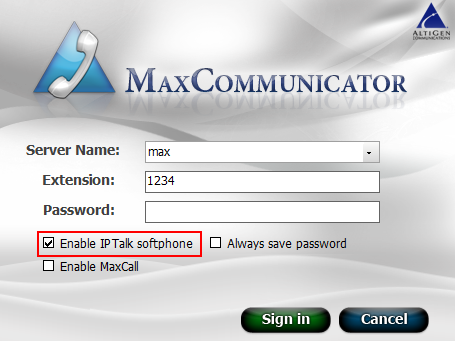
Open the desired Max application and check the Enable IPTalk softphone checkbox.
Enter your exension and password, then click Sign in.
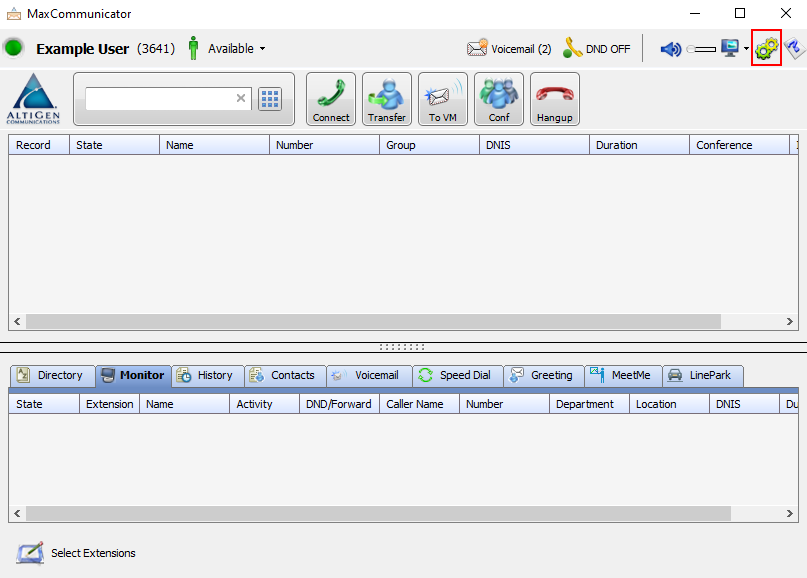
Once Max opens select the configuration icon in the top right hand corner. A seperate window will open.
Select IPTalk on the left.
Change Speaker Device, Microphone Device, and Ring Through Device drop downs to the headset plugged into your device.
Note: If you do not like the phone ringing in the headset you can set the Ring Through Device drop down to a different option.
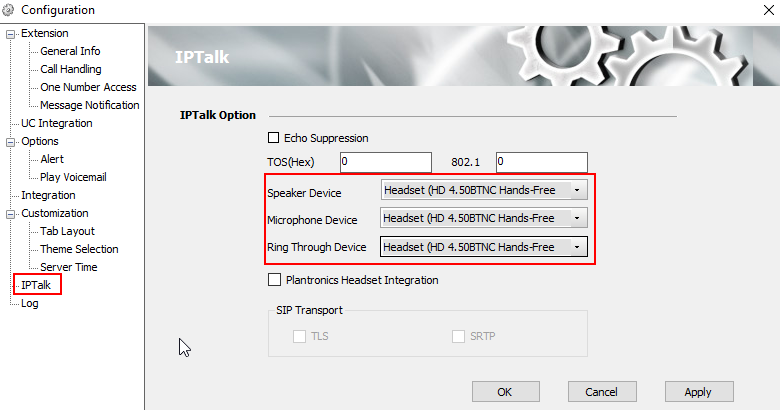
Select Apply, then OK.
Note: These settings will be retained as long as the USB headset remains plugged in. If you remove the headset, you will need to apply these settings again.

