How to export and import Chrome bookmarks

Jul 08, 2024
 81
81
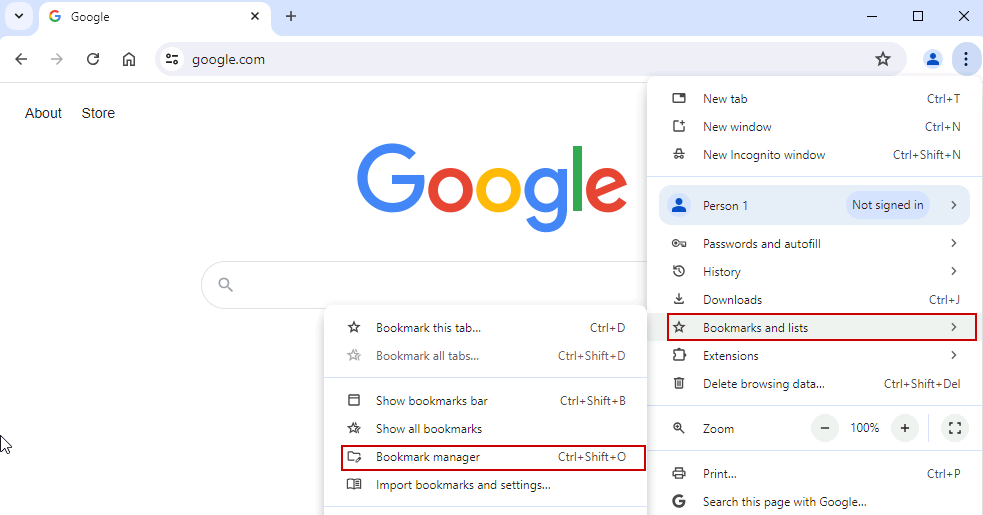
Open a new Chrome window. Click the overflow menu (three dots), and select Bookmarks and lists > Bookmark manager.
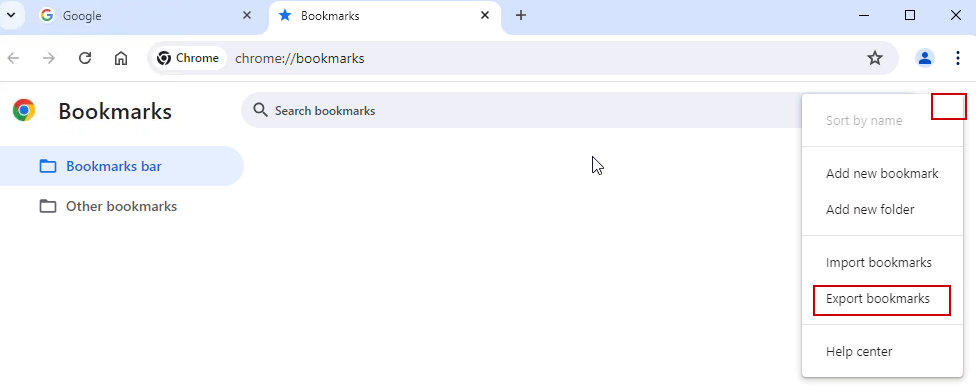
A new tab will open. Click the organize menu, then select Export bookmarks.
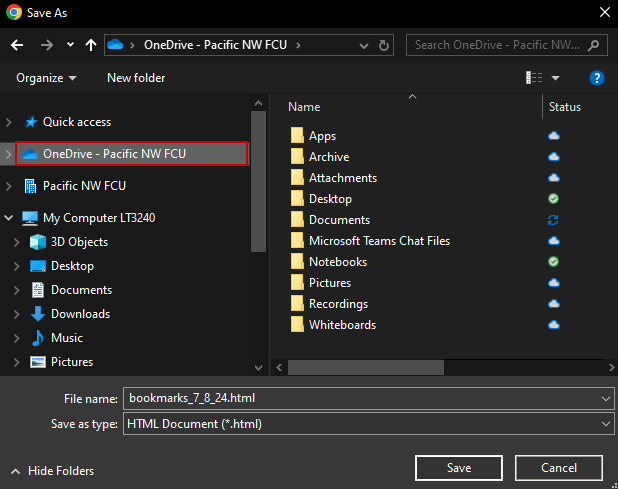
Save the file to OneDrive so you will have access on any machine.
Export complete.
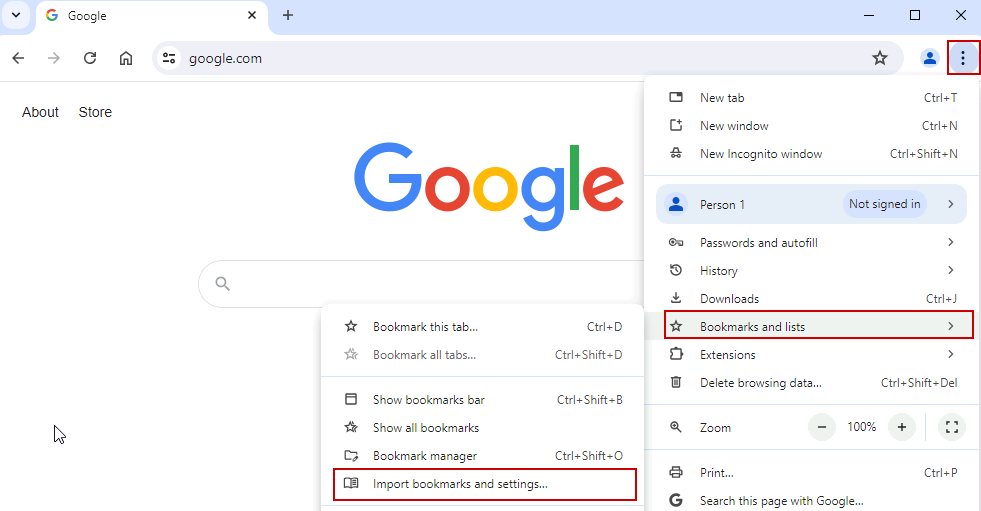
To import your bookmarks open a Chrome Window, click the overflow menu (three dots), and select Bookmarks and lists > Import bookmarks and settings.
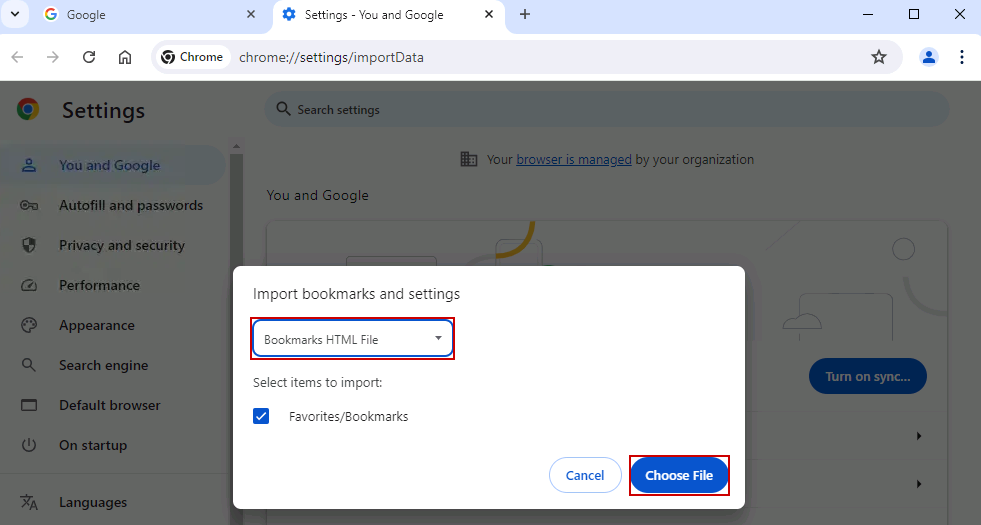
Select Bookmarks HTML file in the dropdown and click Choose File.
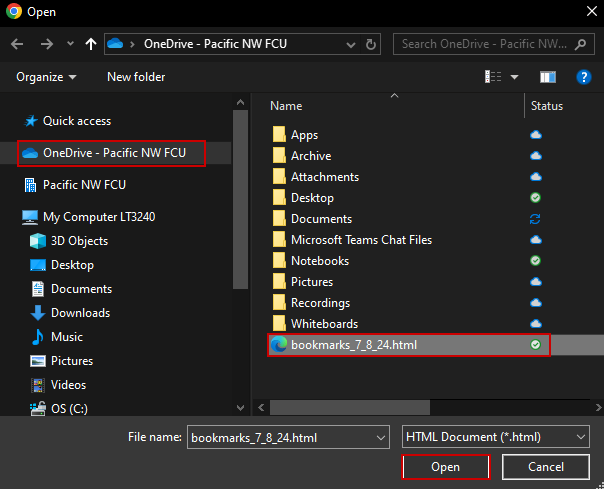
Select the bookmarks.html file saved earlier in your OneDrive and click Open.
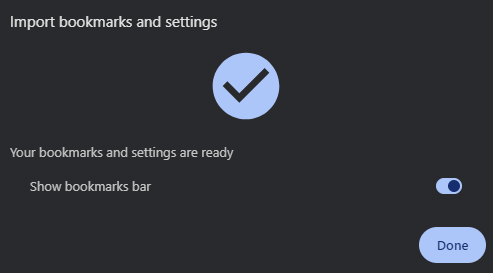
Import complete. Click Done.