Changing the Default Browser in XP2

May 06, 2022
 72
72
*Note: Internet Explorer is End of Life and should no longer be used
*Note (05/05/22): Chrome Update 100 or 101 introduced a pop-up window warning the user any time XP2 tries to open a check or receipt window. This pop-up cannot be turned off at this time.
Changing XP2 default browser-
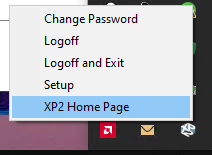
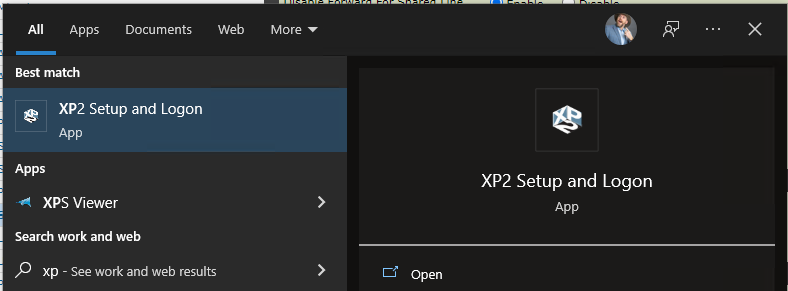
Open the XP2 Setup and Logon screen. You can open from the Start menu by searching XP2 or if it is already running, you can click on the icon in the System Tray in the lower right corner of your screen.

Once in the Setup Program, click on the Workstation tab and choose browser at the bottom left.
Edge is recommended at this time.
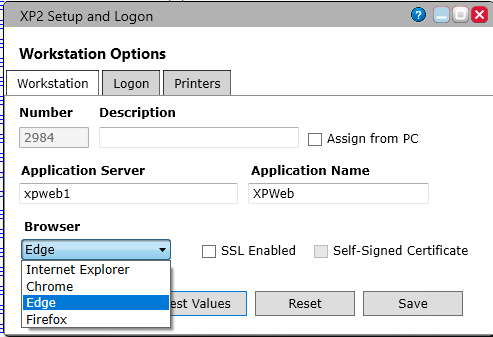
Be sure to click Save. Close out all open windows and Click "XP2 Home Page" from the System Tray Icon.