Allow IE mode in Microsoft Edge

Nov 04, 2022
 50
50
How to allow IE (Internet Explorer) mode on Microsoft Edge
IE mode will allow users to access web/apps that still need Internet Explorer for backward compatibility with existing websites.
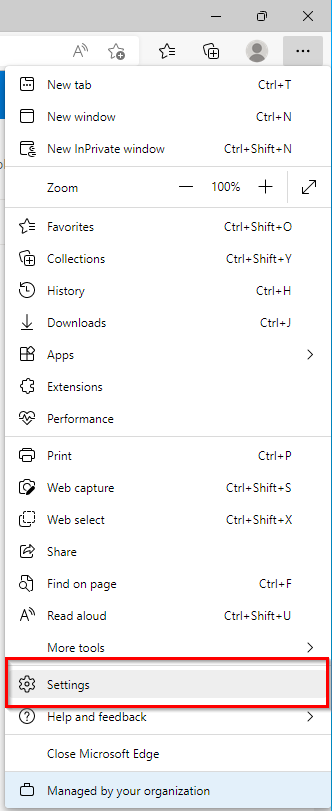
In Microsoft Edge, click on the ellipsis icon (...) in the upper right-hand corner then click on settings
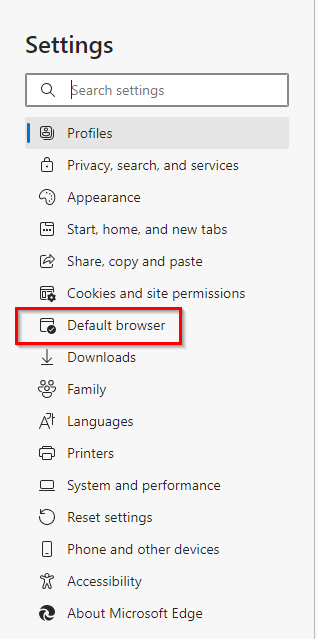
Click default browser
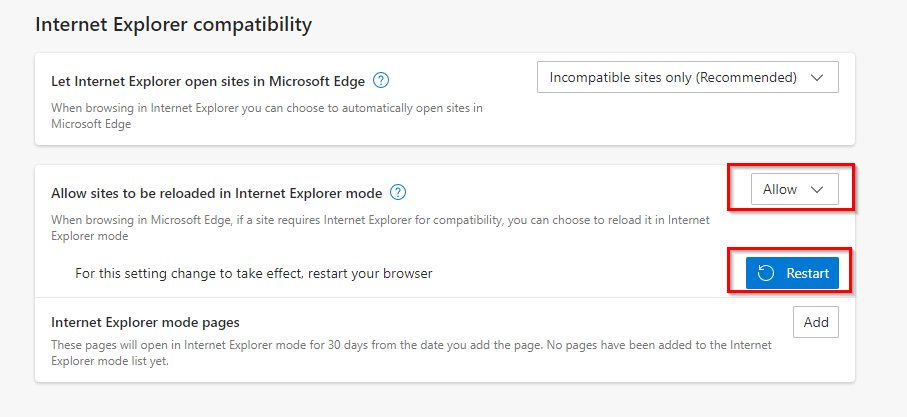
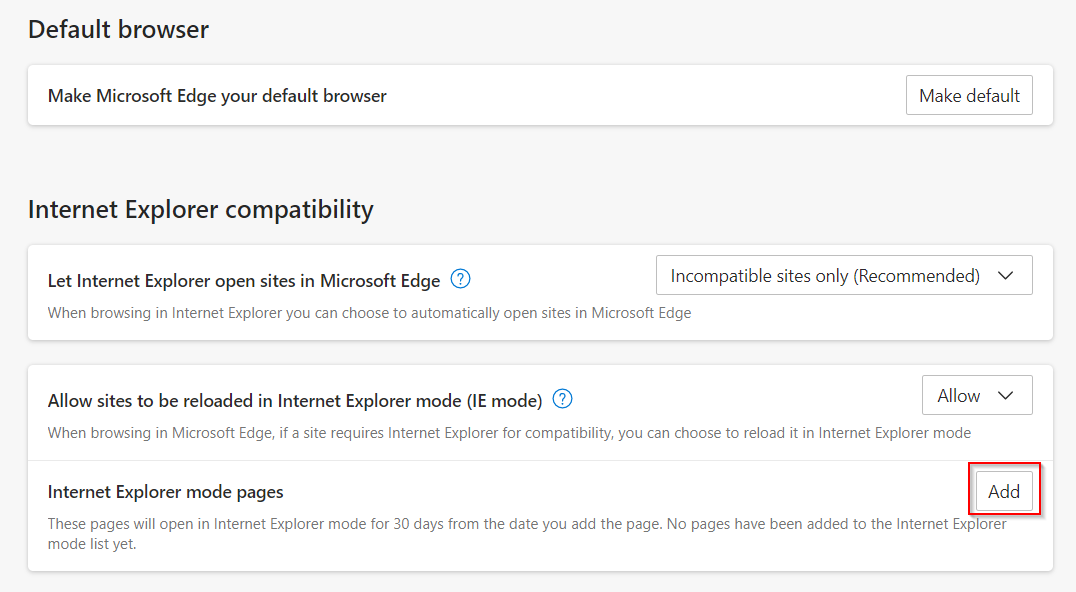
Under “Allow sites to be reloaded in Internet Explorer mode” change it to allow. A restart button will appear, you will need to click on the restart button to restart your browser to apply the changes.
How to add a site to the IE mode list:
After following the two first steps above (Settings > Default Browser), click on Add.
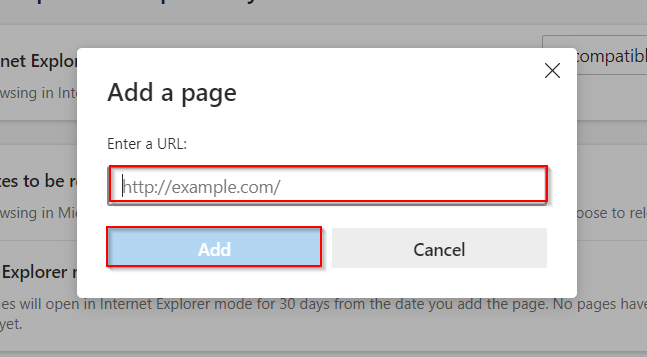
Enter the full URL then click Add.