33
33
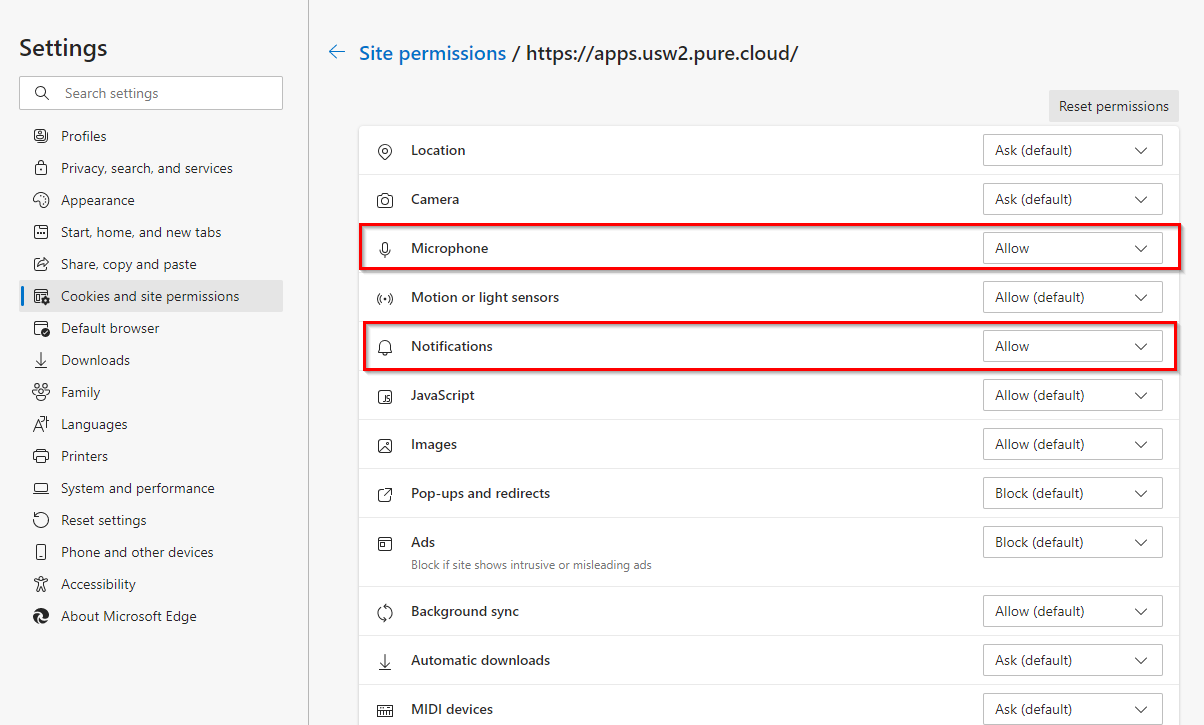
Notification & microphone permission settings for Genesys
Chrome:
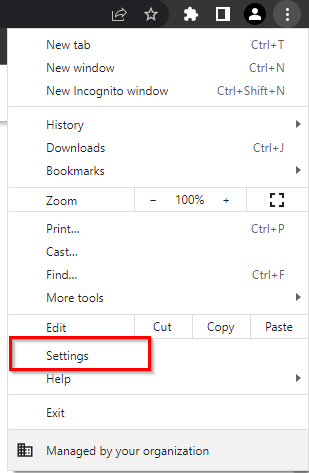
Click on the hamburger icon in the upper right-hand corner then click settings.
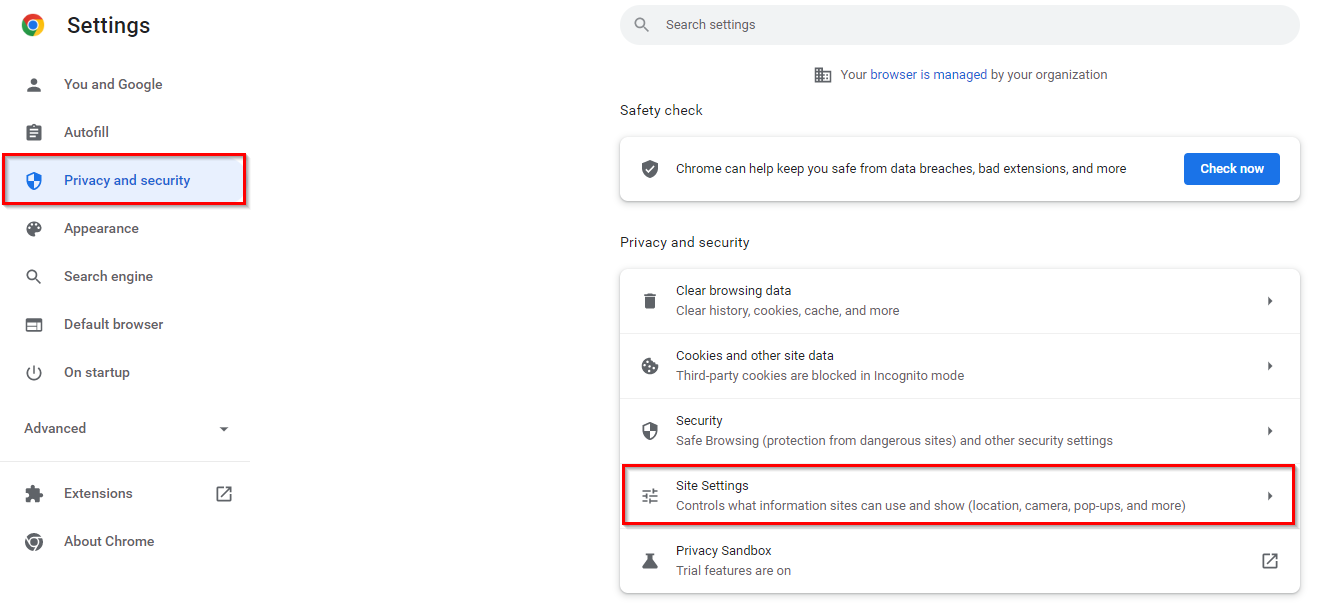
Click on Privacy and security on the left then click on site settings.
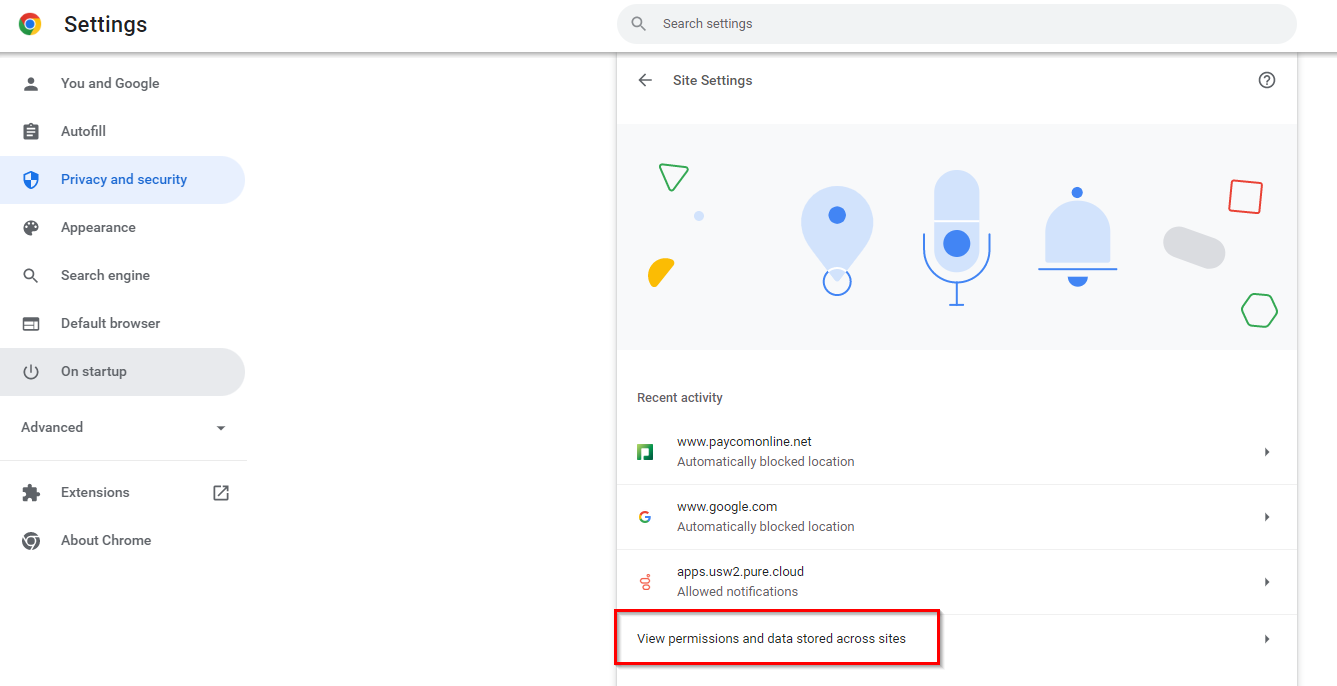
Click on View permissions and data stores across sites.
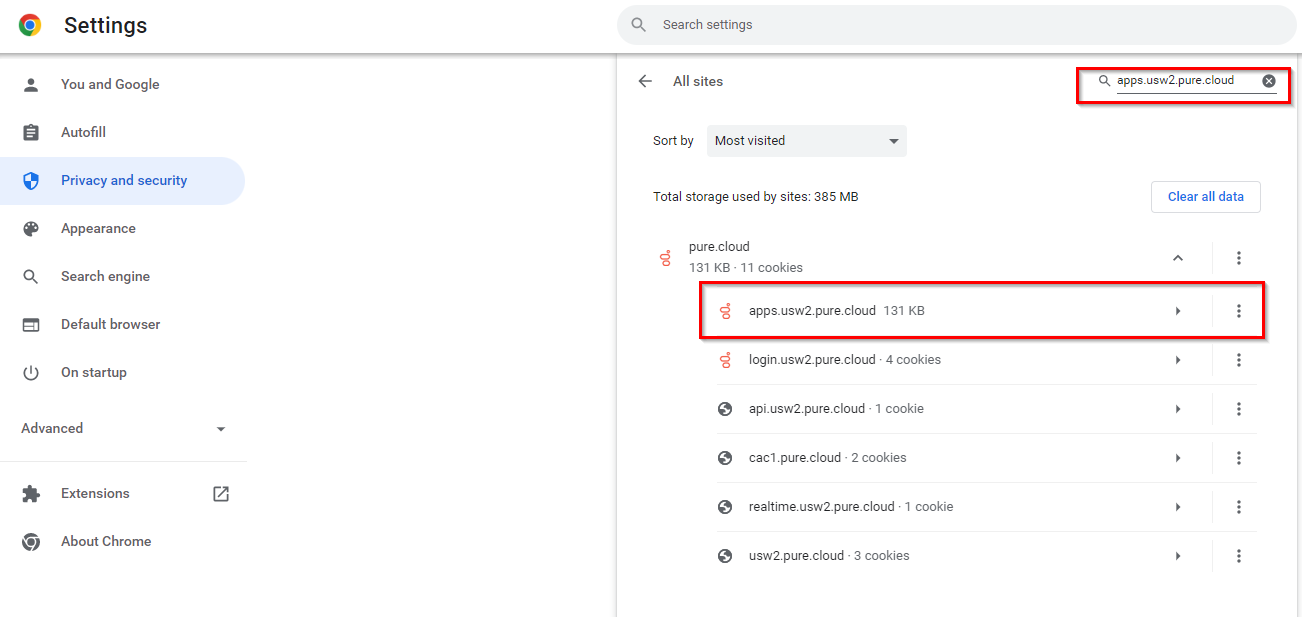
Type apps.usw2.pure.cloud in the search bar. Click on apps.usw2.pure.cloud under pure.cloud.
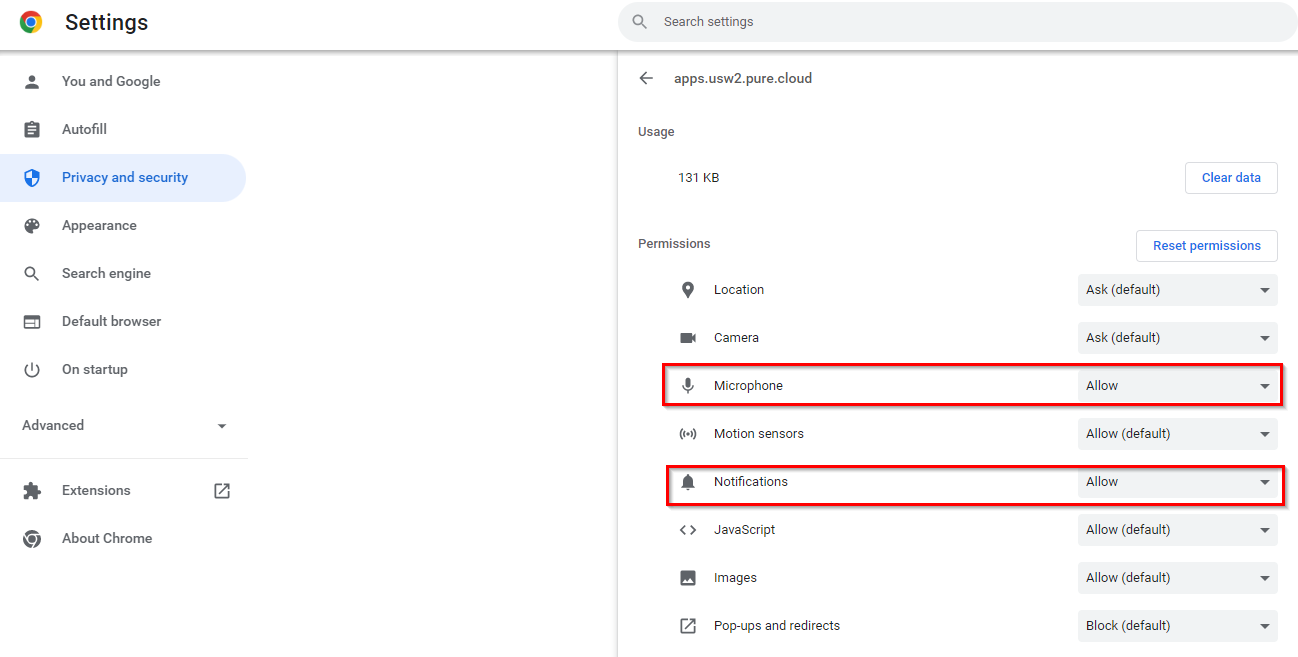
Change the microphone and notification permissions to allow. After you change the permissions, you’ll want to refresh Genesys.
Microsoft Edge:
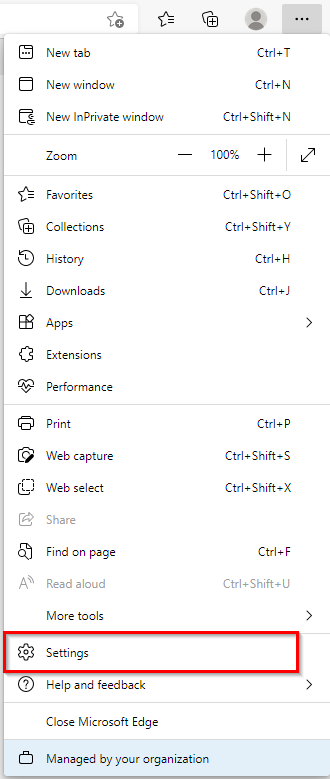
Click on the hamburger icon in the upper right-hand corner then click settings.
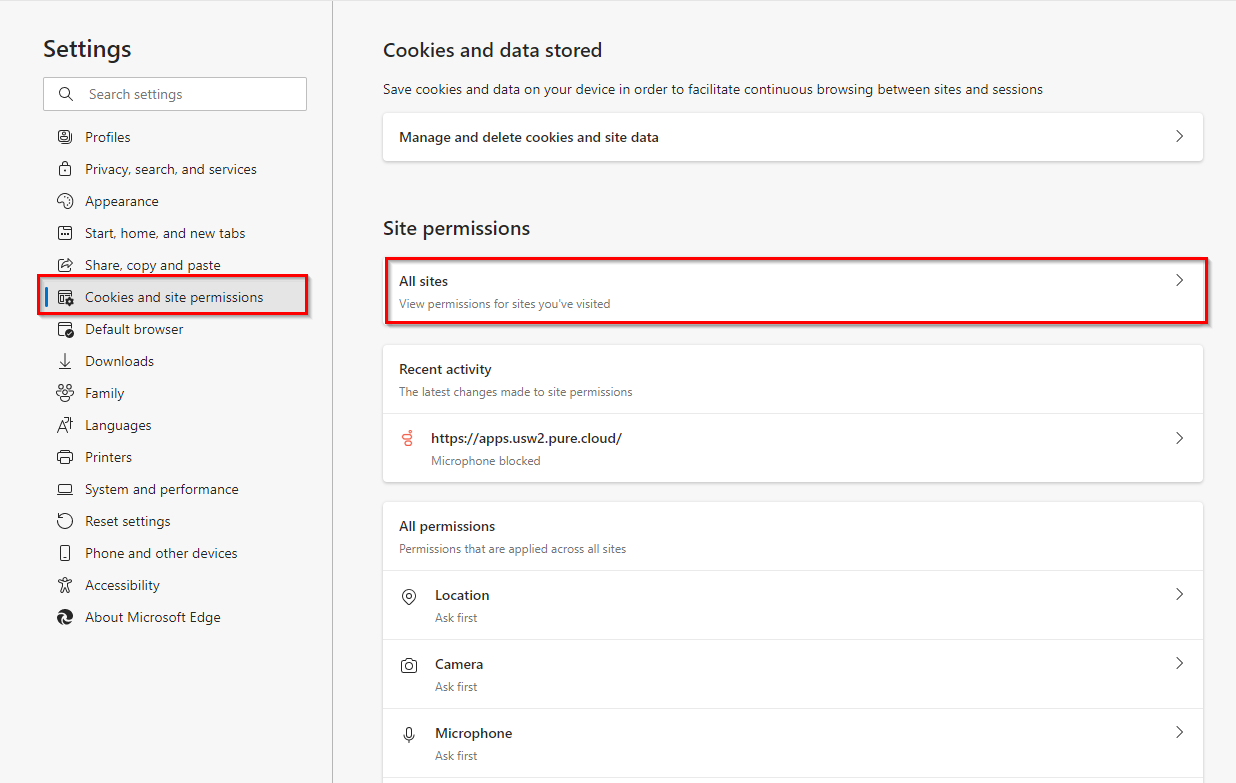
Click Cookies and Site permissions on the left then click All sites.
Type in pure.cloud and click on the right pointing arrow.
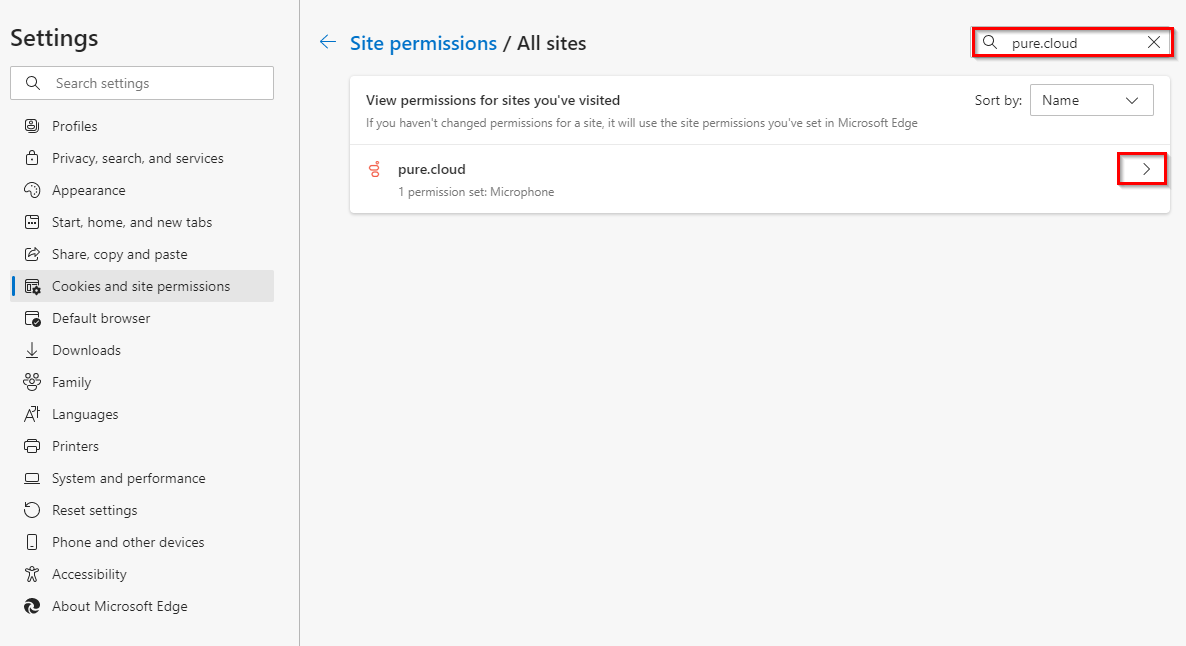
Change the permissions for the microphone and notifications to allow. Once you change the permission, you’ll want to refresh Genesys.