VPN before logon

Jul 12, 2022
 186
186
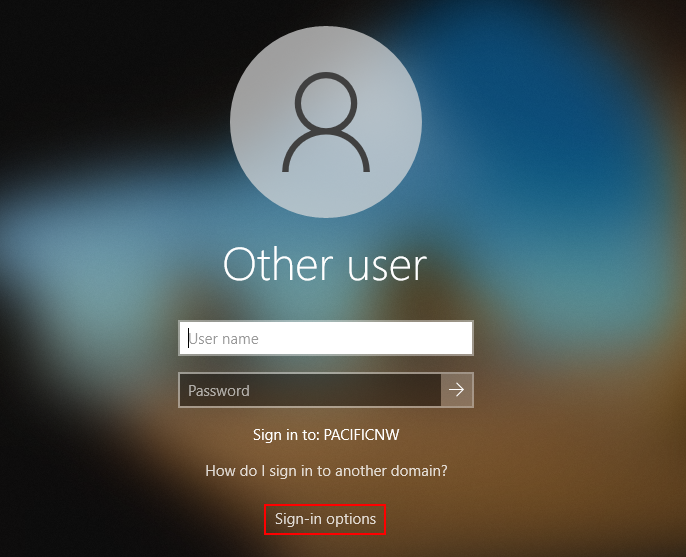
1. On the Windows login screen select “Sign-in options” to access FortiClient.
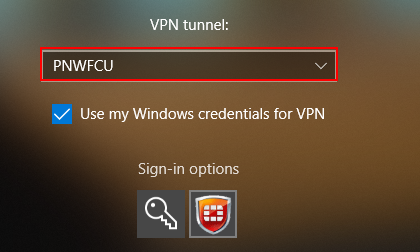
2. Select the FortiClient icon pictured below.
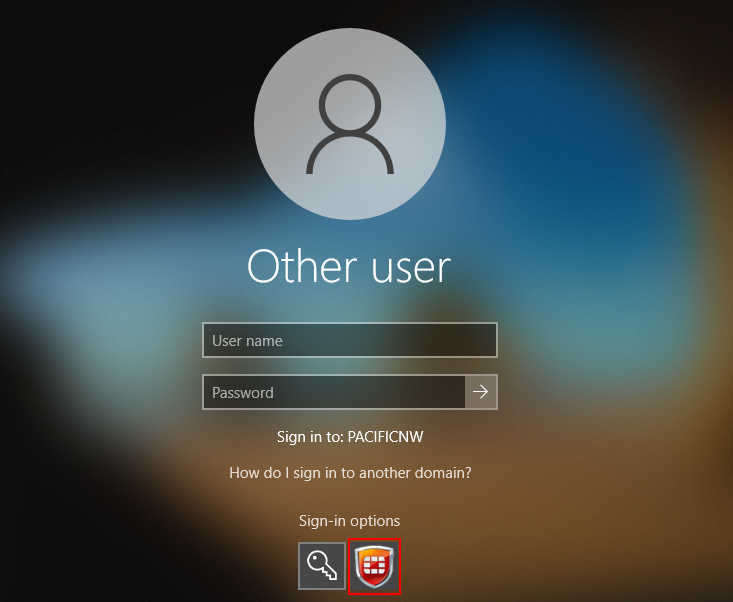
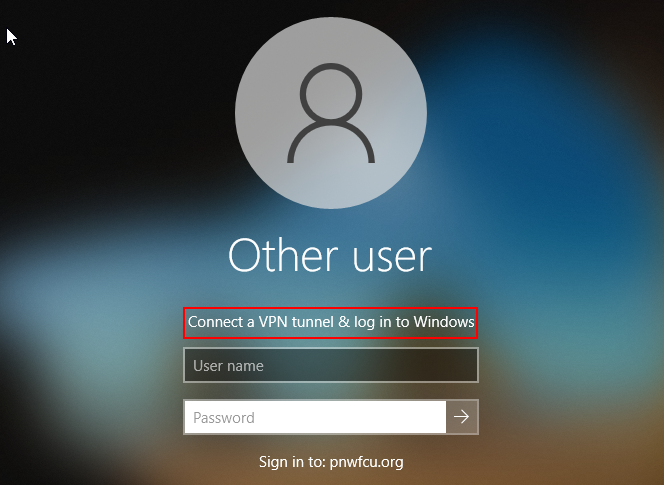
3. After selecting you should see “Connect a VPN tunnel & log in to Windows”. If you scroll down, you should see the PNWFCU VPN tunnel in the drop down. Leave “use my Windows credentials for VPN” checkbox selected.
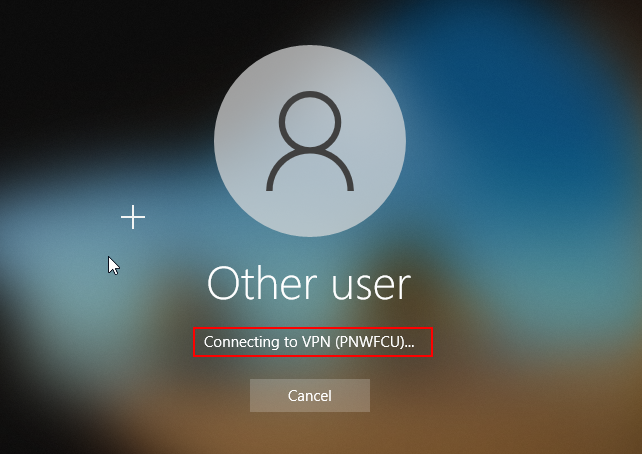
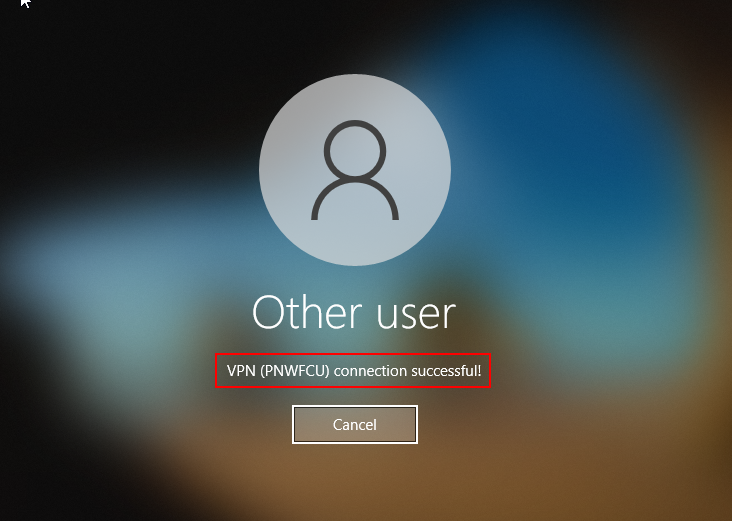
4. Once you enter your username and password and hit enter you should see the message “Connecting to VPN (PNWFCU)” and then another message “VPN (PNWFCU) connection successful.