Enable email forwarding

Mar 23, 2023
 9
9
Enable email forwarding
Navigate to Outlook on the web: https://outlook.office.com/
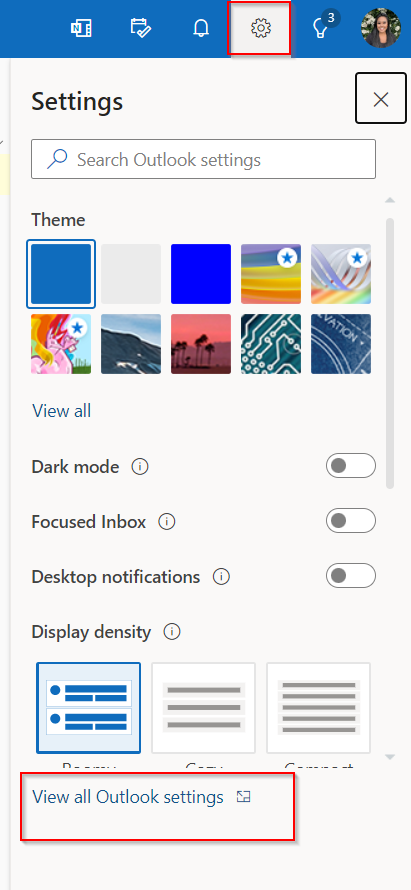
Once signed in, click on settings in the upper right corner then click on “View all Outlook settings”
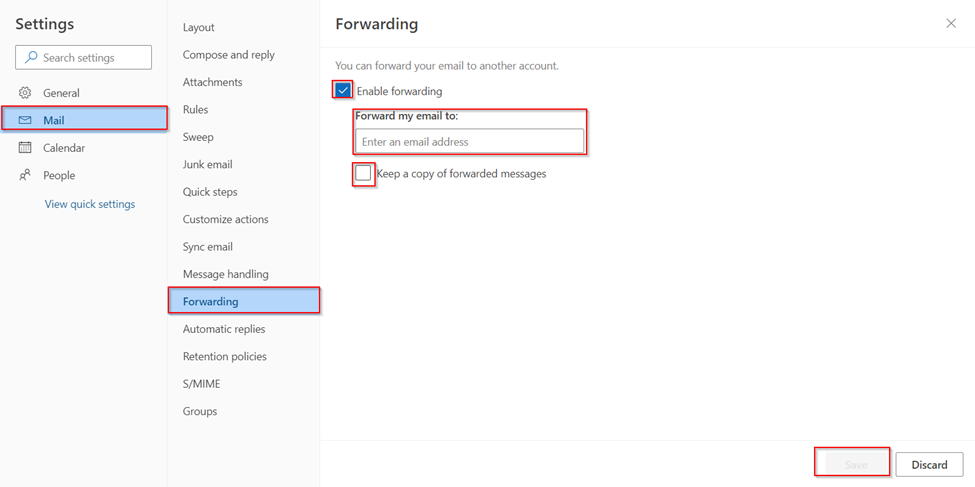
Click "Mail" then click "Forwarding". Check Enable Forwarding and type in the email. Check the box if you would like to keep a copy of the forwarded email. Then click save.