


Instructions for Temporary Laptops

Jun 06, 2023
 5
5
Instructions for Temporary Laptops
For Dell Laptops
Username: DellTemp
Password: Traveler2!
For Lenovo Laptops
Username: LenovoTemp
Password: Traveler1!
Once you are logged in you will need to set up FortiClient VPN to be able to remote into your workstation.
How to configure VPN:
- Make sure you have the client on your machine. You can get it from the Teams site if you are using a personal machine. Otherwise, please open the FortiClient on your machine.
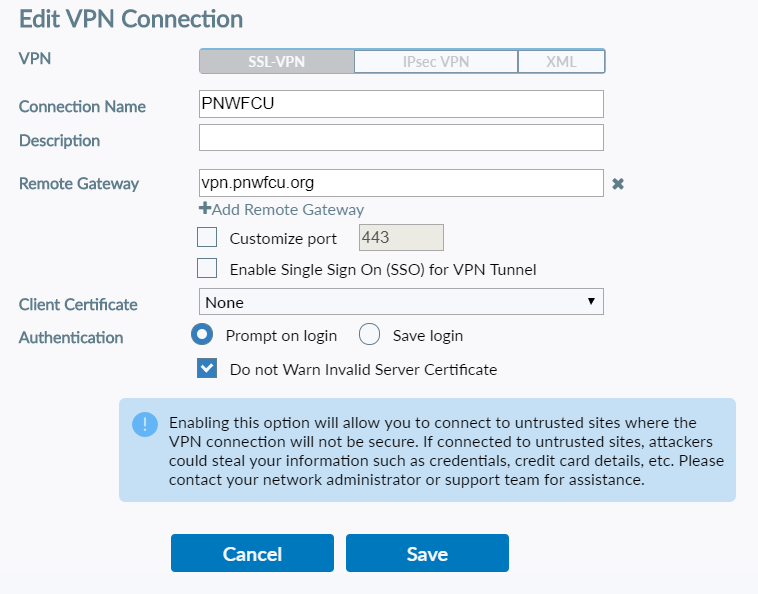
- Configure the client by entering the following:
- VPN: SSL-VPN button
- Name: Whatever you want. Example: "PNWFCU"
- Description: doesn’t matter
- Remote Gateway: vpn.pnwfcu.org
- Authentication: Prompt if you are using a personal machine. Save Login if you are using company equipment.
- Screenshot:
- Save those settings.
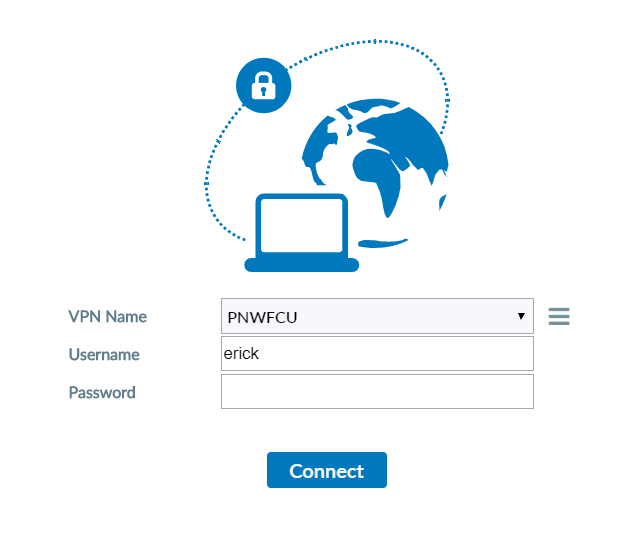
- Make sure you select the VPN name you just created. Enter your username and password that you’ve been using to connect to VPN.
- Hit connect.
You should see a screen that looks like this:
Once connected you can remote into your workstation. Search for “Remote Desktop Connection” and click on the app below.

You will see the box below where you will enter your workstation number (example ws3237).
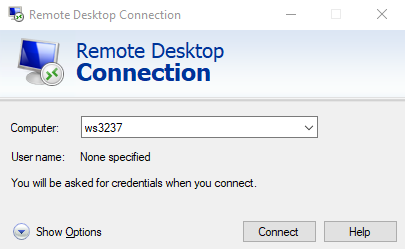
Click connect and you will be prompted for your username and password. When remoting in for the first time include @pnwfcu.org at the end of your username.

