


Expired password/Change password

Jul 18, 2023
 142
142
Expired Password
For expired passwords, please reach out to IT for a temporary password.
Once you receive the temporary password, you’ll need to sign in through FortiClient.
Click “Sign-in options”
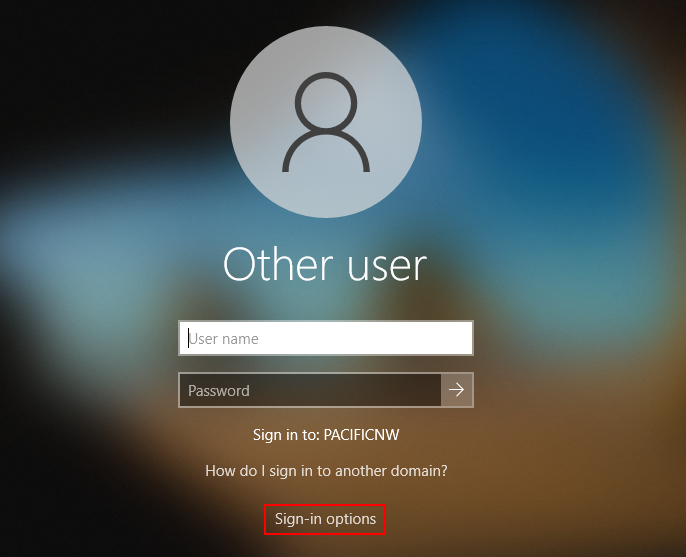
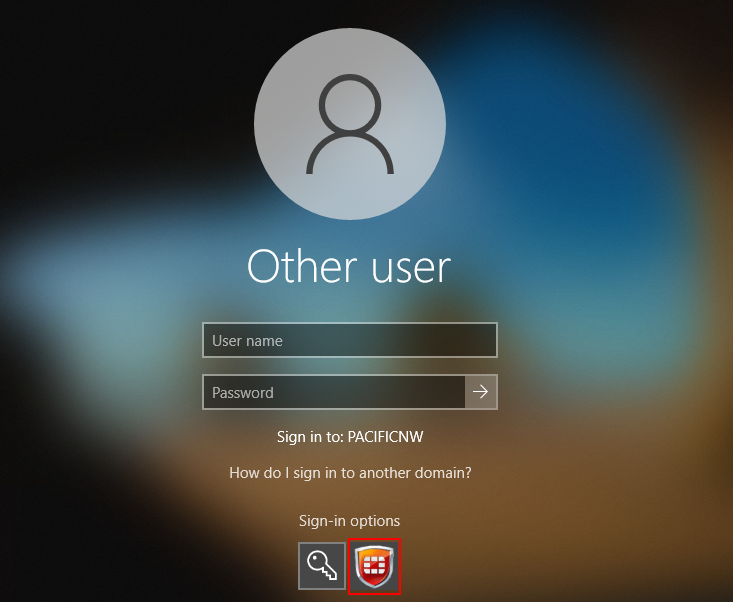
Select the FortiClient icon pictured below.
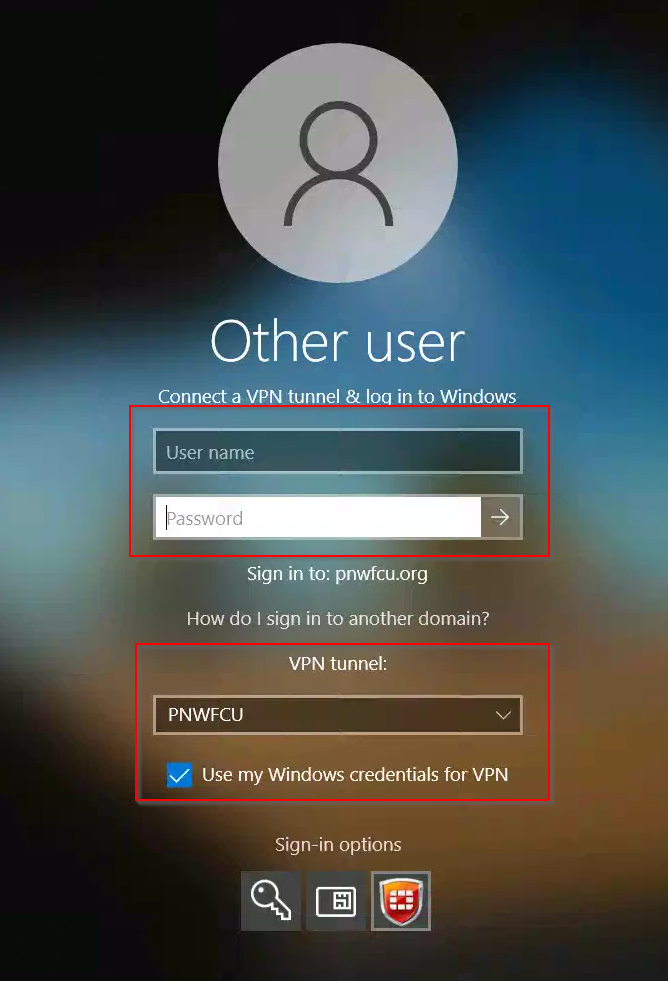
Ensure the information is correct:
- VPN Tunnel: PNWFCU
- “Use my Windows credentials for VPN” is checked
Enter Username and Temporary Password.
Once you are logged in, please change your password.
To change password
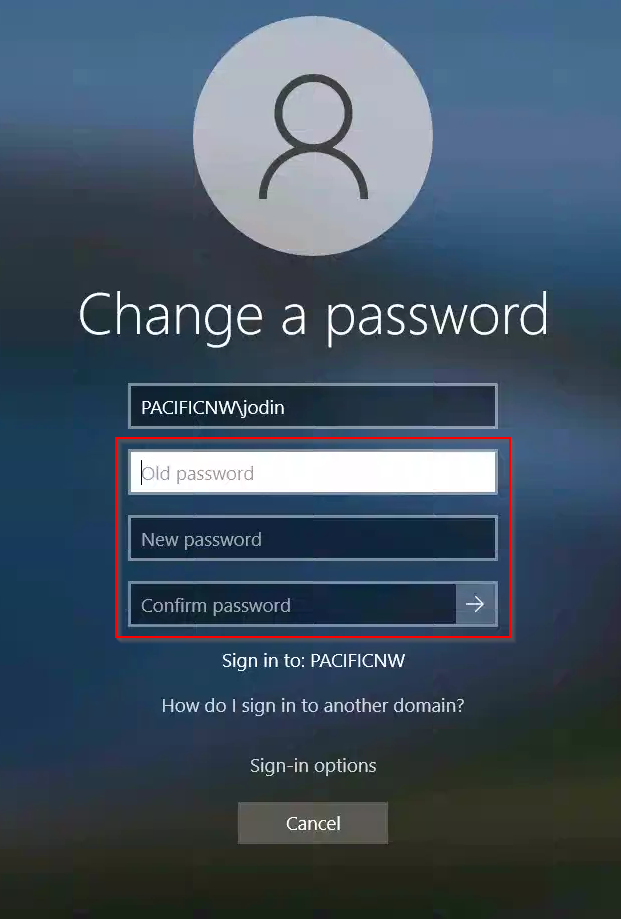
To change your password, click CRTL + ALT + DELETE then click “Change a password”.
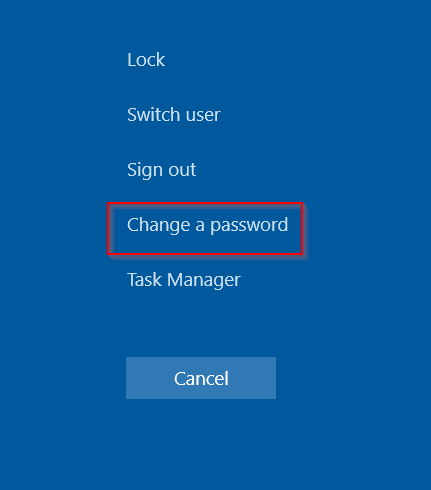
Enter Old password (temporary password), New password, confirm password.
Once you have changed your password, sign out and sign back in with your new password using the FortiClient method shown in the beginning of the article.

