Outlook Setup

Dec 08, 2021
 11
11
Open the Outlook application.
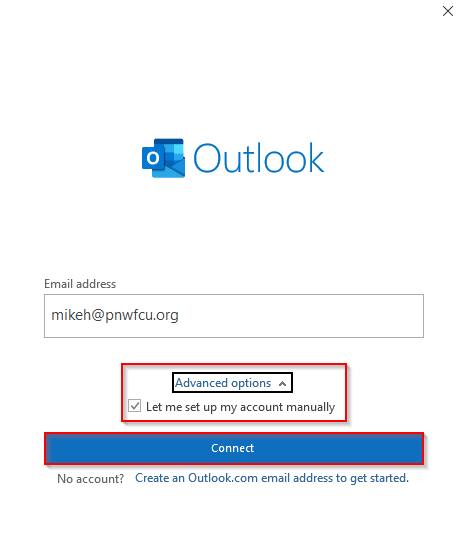
Enter your email address, click the Advanced options drop down, check the Let me set up my account manually checkbox, then click connect. Enter password when prompted.
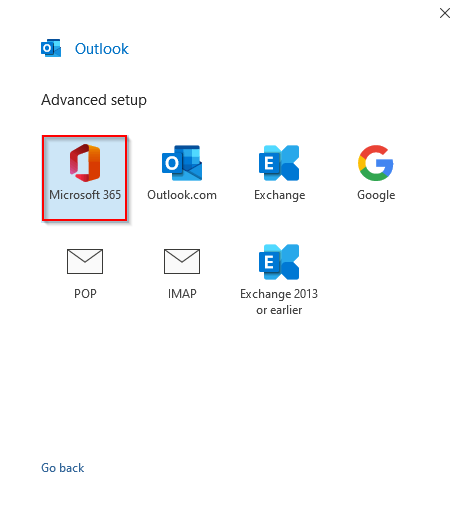
Select Microsoft 365 from the Advanced setup options.
Select desired timeframe for past email download, then click next. Leave Use Cached Exchange Mode to download email to an Outlook data file box checked.
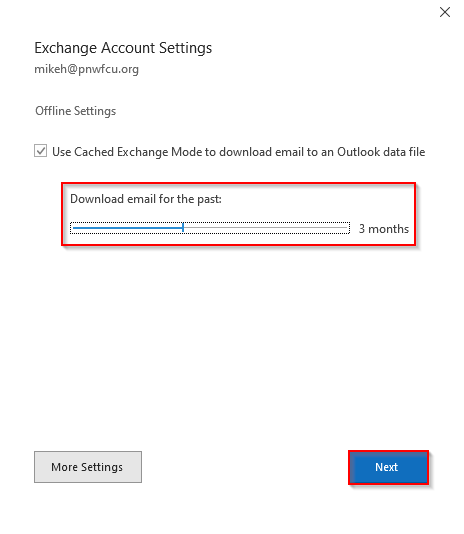
Note: You can always retrieve older emails if needed.
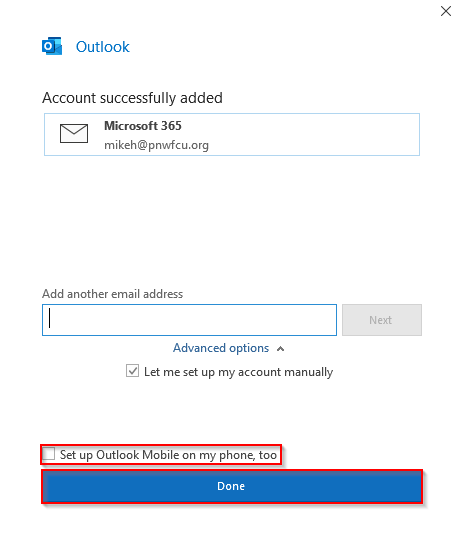
Uncheck Set up Outlook Mobile on my phone, too, then click Done.
Outlook will load your profile and open to your inbox.