155
155
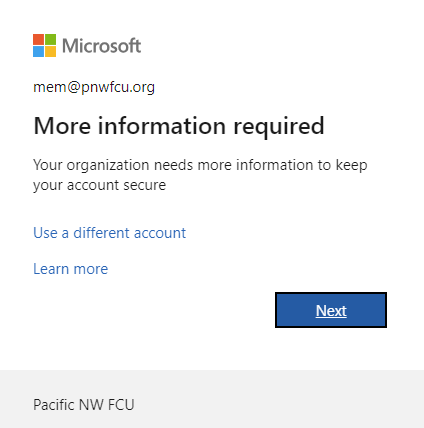
When logging in from outside the network you will see the prompt below asking for more information.
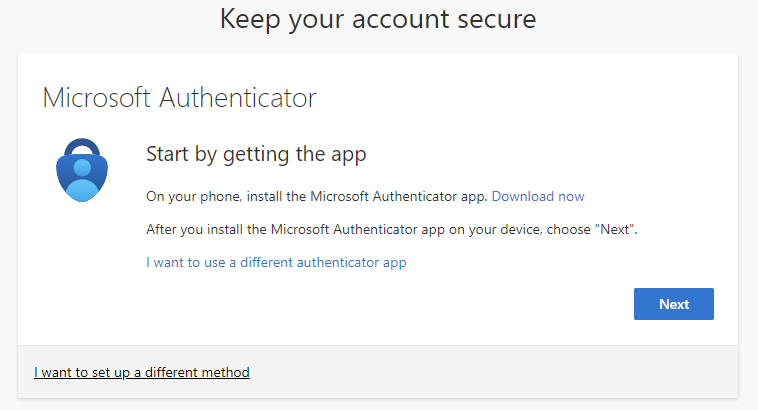
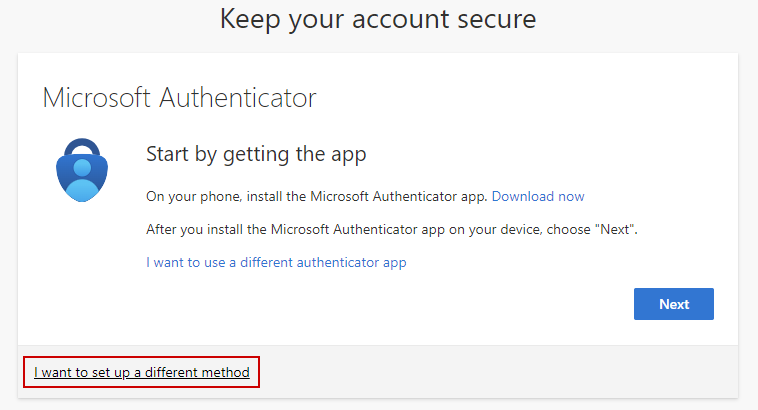
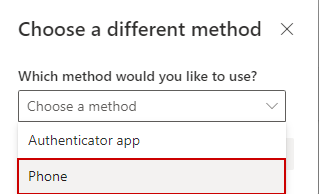
Select Download now to download the Microsoft Authenticator app. You can select "I want to use a different method" to add your phone number for call/text. You can also use third party authenticator options like Google Authenticator, etc.
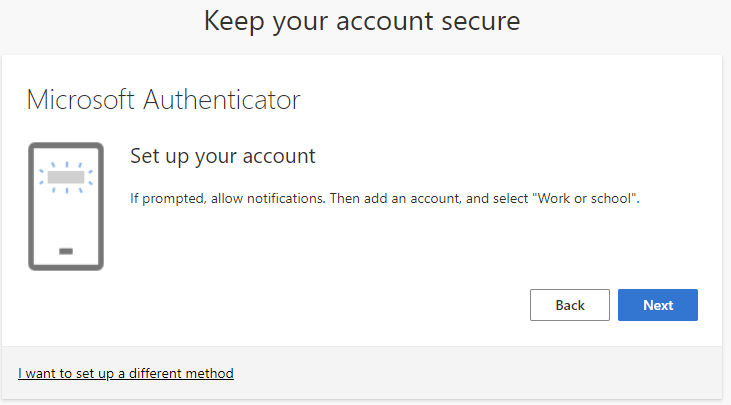
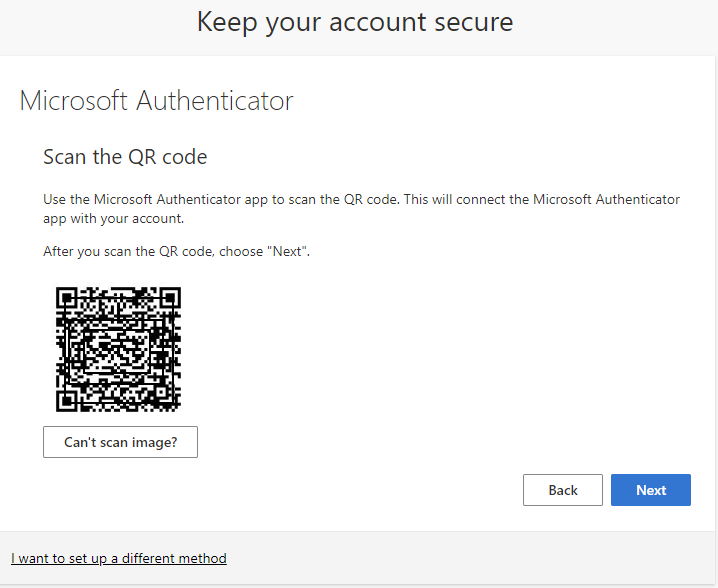
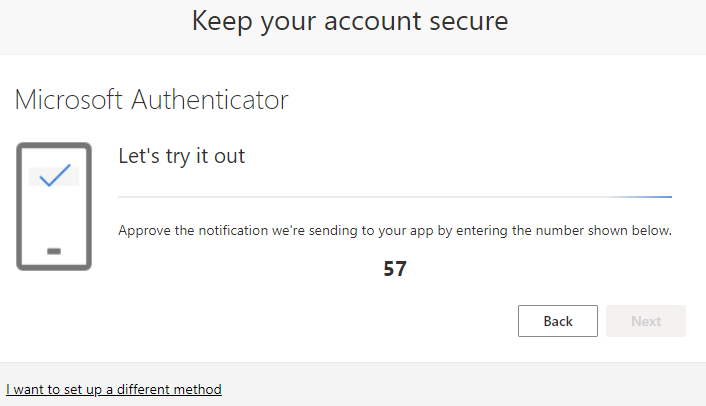
You will be asked to confirm a two digit number in Microsoft Authenticator.
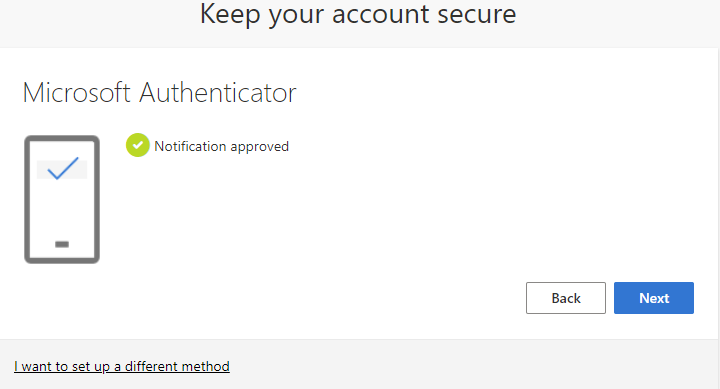
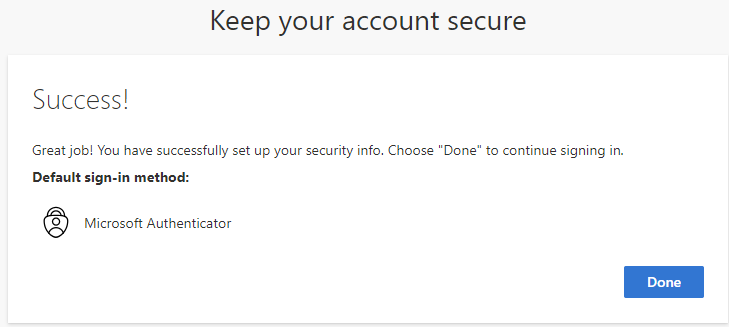
You should see approved and successful messages.
How to use an alternate method.
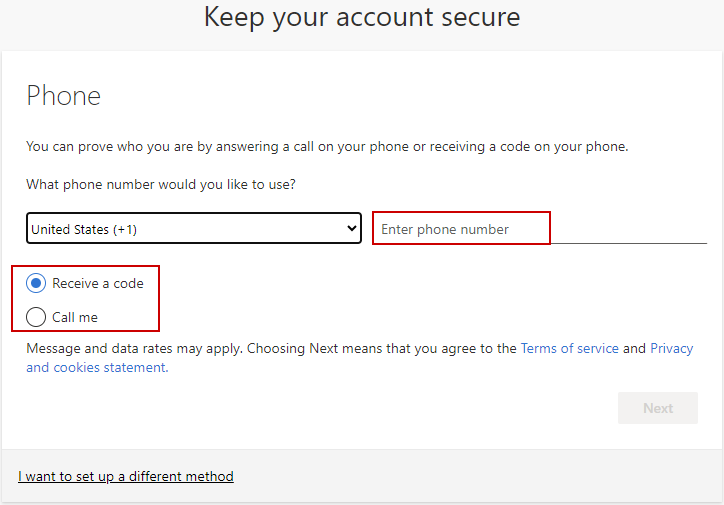
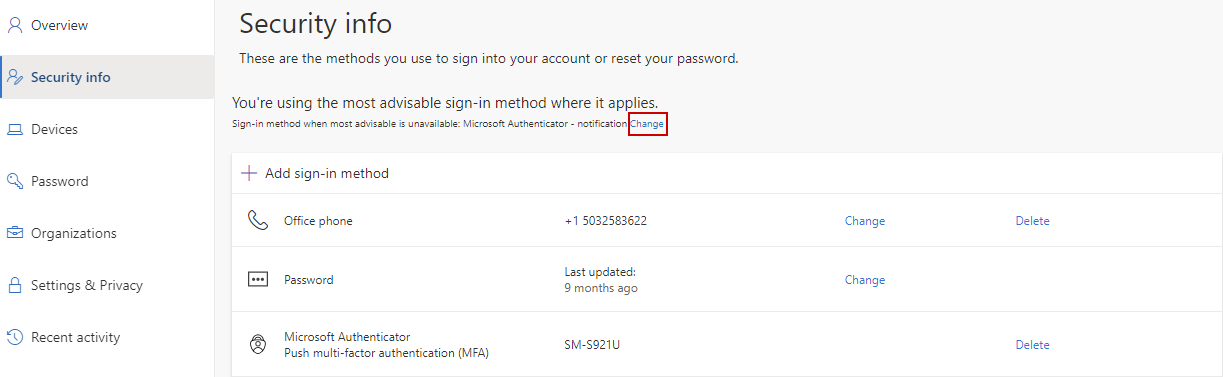
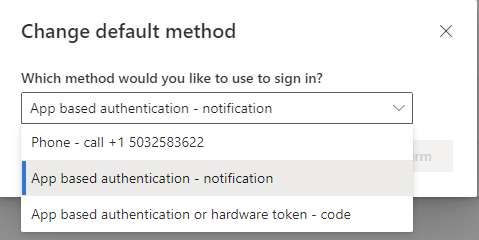
To add additional methods or update your default authentication method visit https://aka.ms/MFASetup. Click change to update the default method or add sign-in method to add additional methods. If your cell was added you should see the option to send a text message.