Setting up MFA for Iphone users

Apr 25, 2024
 5
5
Setting up MFA for Iphone users
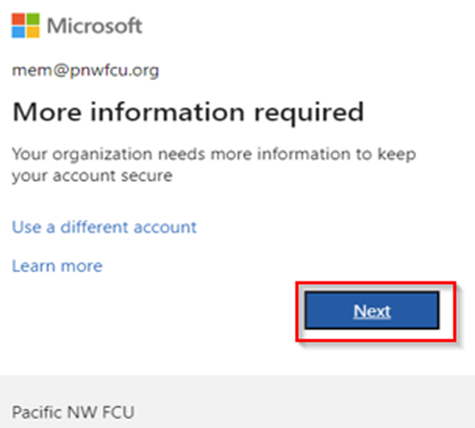
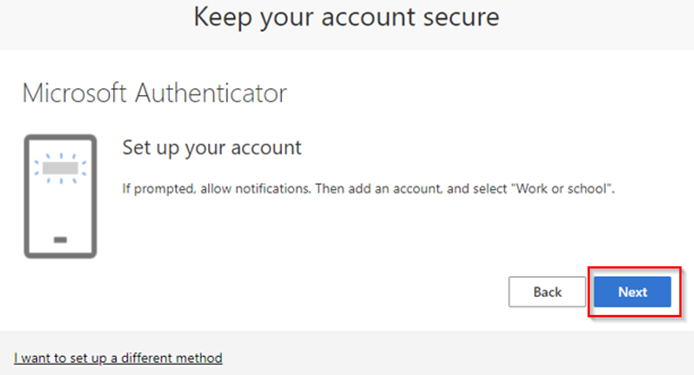
When logging in from outside the network you will see the prompt below asking for more information. Click Next.
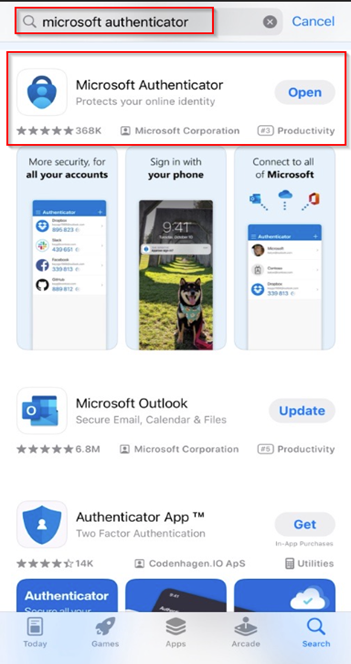
Download Microsoft Authenticator from the app store. Type in “Microsoft Authenticator” in the search bar and it will be the one listed below. Once the application has been downloaded, click Next.
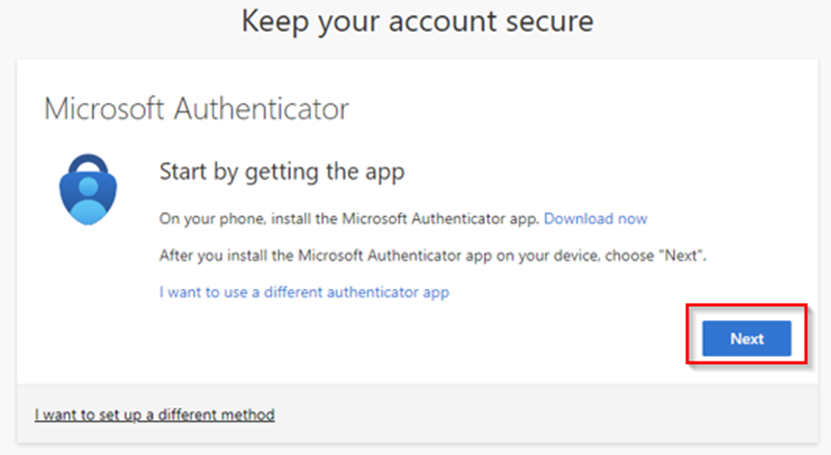
Click Next.
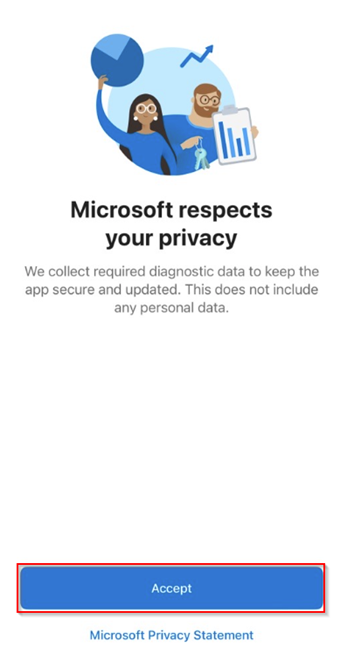
Launch Microsoft Authenticator, click on Accept.
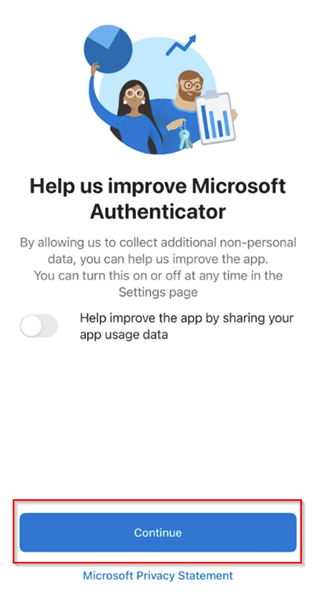
Click Continue.
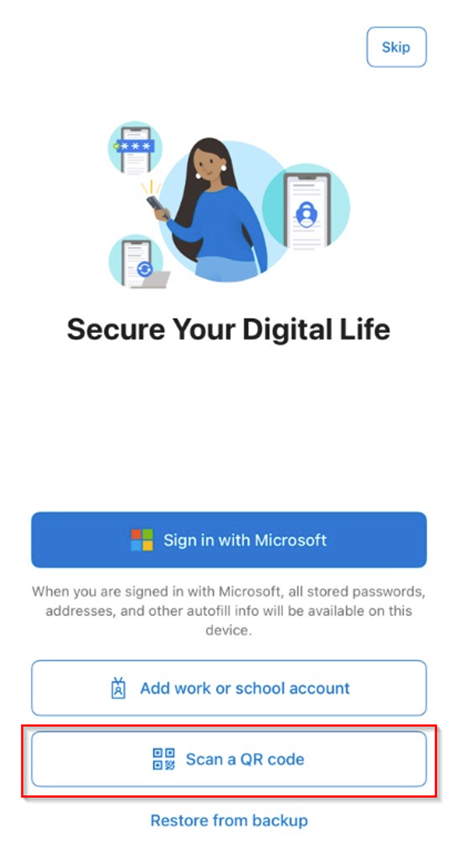
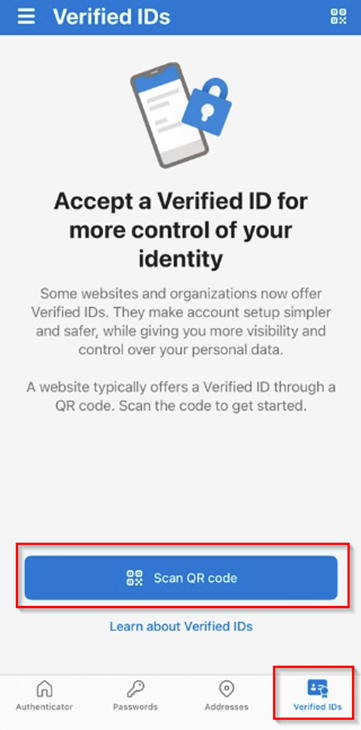
Click on Scan a QR code. If you have skipped this screen, you’ll want to click on the tab “Verified ID’s”, then click scan QR Code.
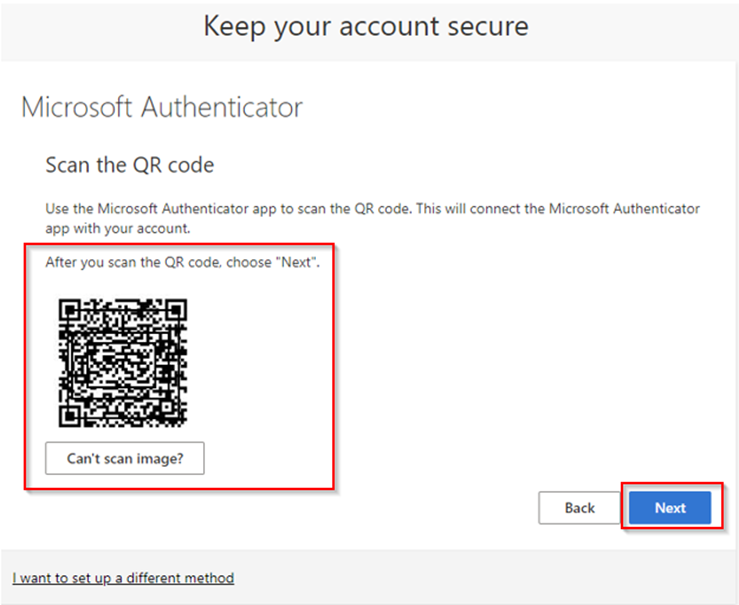
Scan the QR Code displayed on your screen, then click Next.
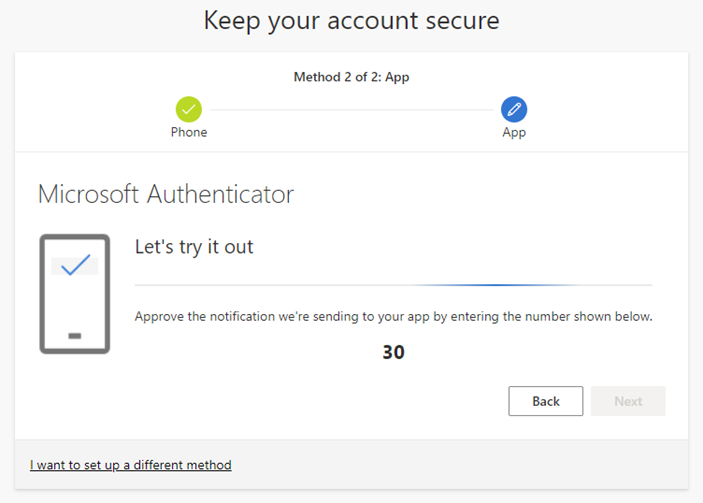
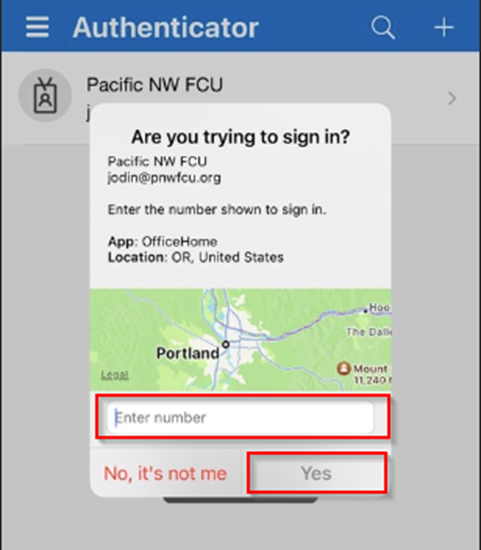
Enter the number displayed into your phone and click on yes.
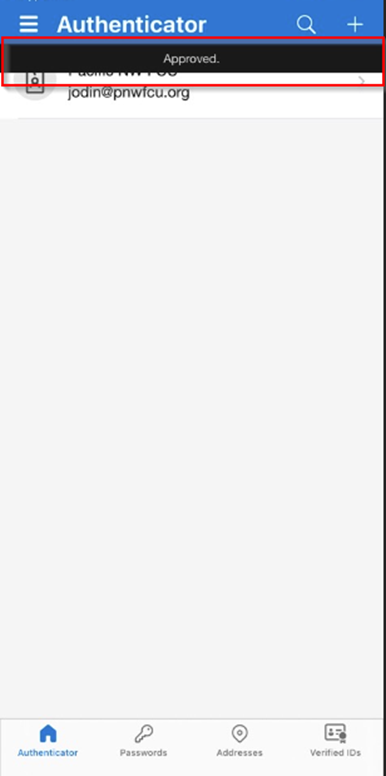
It will show approved at the top of your device.